amber rose
Introduction
Choosing the right image resolution can make the difference between a sharp, professional-looking image and one that appears blurry, pixelated, or poorly sized. Whether you are preparing photographs for printing, designing graphics for a website, creating social media content, producing marketing materials, or working with a high-resolution monitor, understanding PPI and DPI is essential.
A PPI/DPI Calculator is a free tool that helps determine the relationship between digital image dimensions, pixel density, physical print size, and output resolution. Instead of manually performing calculations, users can enter image dimensions and desired resolution to quickly estimate the appropriate print size or pixel requirements.
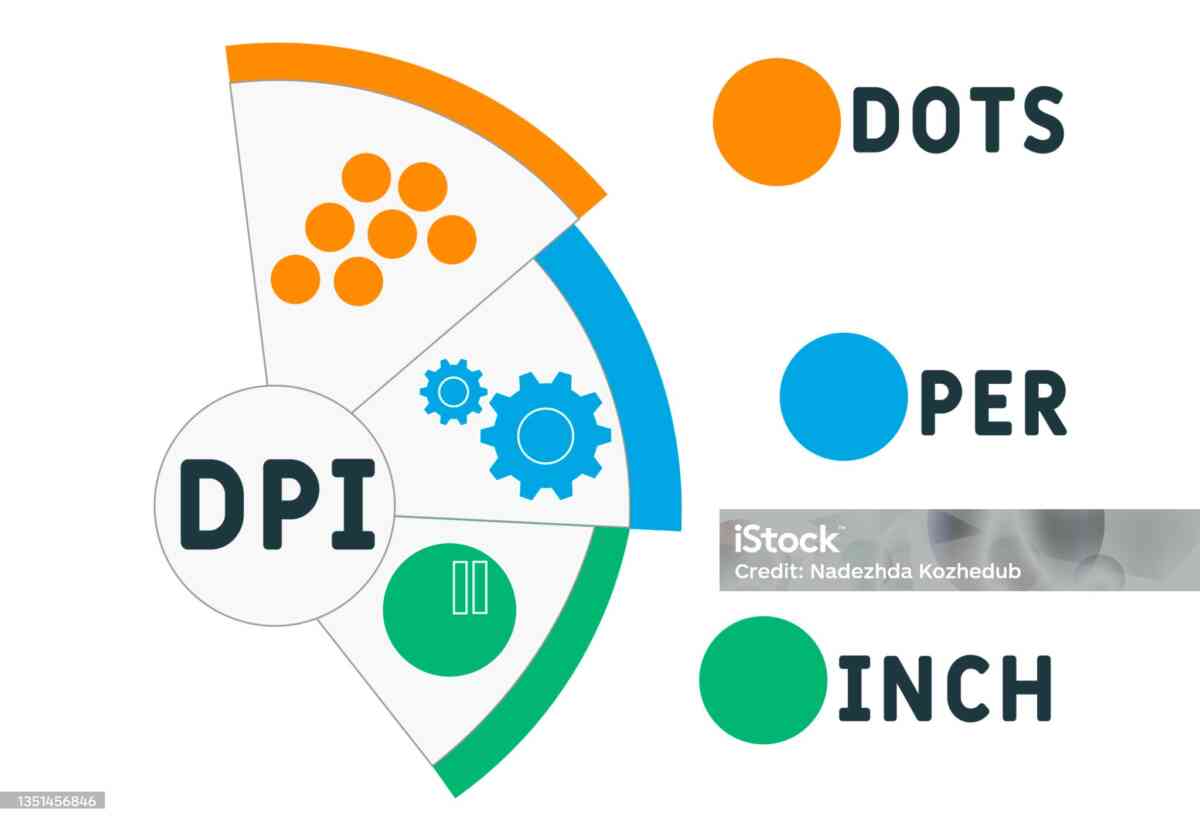
PPI means Pixels Per Inch, while DPI means Dots Per Inch. Although these terms are frequently used interchangeably, they describe different concepts. PPI generally relates to digital images and displays, while DPI traditionally describes the physical dots produced by printers.
Understanding this distinction is particularly important for photographers, graphic designers, publishers, marketers, web designers, artists, students, and anyone who works with digital images.
This comprehensive guide explains what a PPI/DPI Calculator does, how PPI and DPI work, how to calculate image resolution, how to prepare images for printing, and how to avoid common resolution mistakes.
What Is a PPI/DPI Calculator?
A PPI/DPI Calculator is an online calculation tool designed to simplify image-resolution calculations.
Depending on the calculator, users may enter:
- Image width in pixels
- Image height in pixels
- Desired PPI
- Desired DPI
- Physical print width
- Physical print height
- Paper size
- Display dimensions
- Resolution requirements
The calculator can then determine values such as:
- Recommended print dimensions
- Required pixel dimensions
- PPI based on image and physical size
- Maximum print size
- Pixel density
- Resolution relationships
The basic calculation is straightforward:
PPI = Pixels ÷ Physical Inches
For example, suppose an image is 3000 pixels wide and you want to print it at 10 inches wide.
3000 ÷ 10 = 300 PPI
This means the image would have an effective resolution of approximately 300 pixels per inch at that print size.
A calculator automates this process and reduces the possibility of calculation errors.
What Does PPI Mean?
PPI stands for Pixels Per Inch.
Pixels are the tiny digital elements that make up a raster image. A photograph captured by a digital camera, for example, consists of millions of individual pixels.
PPI describes how many of those pixels are represented within one inch of physical space when an image is displayed or printed at a particular size.
Consider an image that is 3000 × 2000 pixels.
If printed at 300 PPI:
- Width = 3000 ÷ 300 = 10 inches
- Height = 2000 ÷ 300 = 6.67 inches
Therefore, the image can be printed at approximately 10 × 6.67 inches at 300 PPI without changing its pixel dimensions.
What Does DPI Mean?
DPI stands for Dots Per Inch.
DPI is primarily associated with printers and physical output devices. A printer creates an image by placing tiny dots of ink or toner onto paper or another material.
A printer advertised as producing 600 DPI can potentially place up to 600 dots across one inch in a particular direction.
However, printer DPI is not exactly the same thing as image PPI.
This distinction matters because a printer can use multiple physical ink dots to reproduce a single image pixel or a range of colors.
PPI vs. DPI: What Is the Difference?
The simplest distinction is:
PPI = digital image pixel density
DPI = printer dot density
For example, a graphic designer might prepare an image at 300 PPI for printing. The printer may then use a much higher DPI setting to reproduce the colors and details contained in that image.
Despite the technical distinction, many printing companies and software applications use the term DPI when referring to image resolution.
That is why users frequently search for terms such as:
- DPI calculator
- PPI calculator
- image DPI calculator
- print resolution calculator
- photo resolution calculator
- pixels to inches calculator
- inches to pixels calculator
A good PPI/DPI Calculator can help users understand the underlying relationship regardless of terminology.
Why Image Resolution Matters
Image resolution determines how much detail an image contains and how large it can be displayed or printed before quality becomes unacceptable.
A low-resolution image enlarged too much may become:
- Blurry
- Pixelated
- Soft
- Jagged
- Unprofessional
A high-resolution image generally provides more flexibility.
For example, a 6000 × 4000 pixel photograph contains significantly more image data than a 1200 × 800 pixel image.
However, higher resolution is not automatically better in every situation.
A huge image may:
- Increase file size
- Slow website loading
- Consume more storage
- Increase upload times
- Require more processing power
The appropriate resolution depends on the intended use.
How the PPI Calculation Works
The basic formula is:
PPI = Image Pixels ÷ Physical Size in Inches
For image width:
PPI = Pixel Width ÷ Print Width
For image height:
PPI = Pixel Height ÷ Print Height
For example, imagine an image that is 2400 pixels wide and intended for a 12-inch print.
2400 ÷ 12 = 200 PPI
The image would therefore have an effective resolution of 200 PPI at that physical size.
If the same image were printed at 8 inches wide:
2400 ÷ 8 = 300 PPI
The image has not gained additional pixels. Instead, the same pixels are concentrated into a smaller physical area.
How to Calculate Print Size From Pixels
You can also reverse the calculation.
The formula is:
Physical Size = Pixels ÷ PPI
Suppose you have a 3600-pixel-wide image and want to print at 300 PPI.
3600 ÷ 300 = 12 inches
Therefore, the maximum theoretical width at 300 PPI is approximately 12 inches.
If the image is 2400 pixels tall:
2400 ÷ 300 = 8 inches
The resulting print size is:
12 × 8 inches
Common PPI Values
Different applications require different resolutions.
Common values include:
- 72 PPI
- 96 PPI
- 100 PPI
- 150 PPI
- 200 PPI
- 240 PPI
- 300 PPI
- 350 PPI
- 600 PPI
There is no universal resolution that is perfect for every project.
72 PPI
Historically associated with computer displays and web graphics, although modern display technology makes this number less universally meaningful.
96 PPI
Commonly encountered in computer-related workflows and software environments.
150 PPI
May be acceptable for larger-format prints viewed from a distance.
200 PPI
A useful middle-ground resolution for certain print projects.
300 PPI
A common target for high-quality photographic and commercial printing.
600 PPI
Often useful for detailed graphics, line art, scanning, or specialized print workflows.
The appropriate value depends on the printer, media, viewing distance, and purpose.
300 PPI: Is It Always Necessary?
One of the most common misconceptions about digital images is that every print must be exactly 300 PPI.
That is not always true.
A small photograph viewed close to the viewer may benefit from high pixel density.
A large poster viewed from several feet away may not need the same PPI.
For example, a billboard can be physically enormous while using a relatively modest effective PPI because viewers typically see it from a considerable distance.
Therefore, image resolution should be evaluated together with:
- Print size
- Viewing distance
- Printer capabilities
- Image content
- Paper type
- Production process
Example: Calculating a Photo’s Print Size
Suppose you have a camera image measuring:
6000 × 4000 pixels
At 300 PPI:
Width:
6000 ÷ 300 = 20 inches
Height:
4000 ÷ 300 = 13.33 inches
The theoretical print size is approximately:
20 × 13.33 inches
At 200 PPI:
6000 ÷ 200 = 30 inches
4000 ÷ 200 = 20 inches
The same image could therefore be printed at approximately:
30 × 20 inches at 200 PPI
The physical print becomes larger because each inch contains fewer pixels.
Why a PPI/DPI Calculator Is Useful
Manual resolution calculations are simple, but a calculator becomes especially useful when working with multiple dimensions and output formats.
A PPI/DPI Calculator can help you:
- Determine maximum print size.
- Calculate required pixel dimensions.
- Check effective image resolution.
- Compare different print sizes.
- Prepare images for professional printing.
- Resize graphics more intelligently.
- Avoid unnecessary upscaling.
- Estimate image density.
- Understand resolution requirements.
- Save time during design work.
How to Use a Free PPI/DPI Calculator
A typical workflow looks like this.
Step 1: Determine the Image Dimensions
Find the pixel dimensions of the image.
For example:
4000 × 3000 pixels
Step 2: Select the Desired PPI
Choose a target such as:
300 PPI
Step 3: Calculate the Physical Size
Width:
4000 ÷ 300 = 13.33 inches
Height:
3000 ÷ 300 = 10 inches
Step 4: Evaluate the Result
You now know the approximate physical dimensions available at the selected PPI.
Step 5: Adjust if Necessary
If the required print is larger, you may need:
- A larger original image
- A lower target PPI
- Image upscaling
- A different production method
PPI and Digital Screens
PPI also describes pixel density on displays.
A screen’s physical pixel density depends on:
- Screen resolution
- Screen size
- Pixel arrangement
- Physical dimensions
For example, two monitors can both have a resolution of 1920 × 1080 but different PPI values if one monitor is physically larger.
A 24-inch Full HD monitor has a higher pixel density than a 32-inch Full HD monitor because the same number of pixels is distributed across a smaller physical area.
How Display PPI Is Calculated
For a rectangular display, PPI can be estimated using:
PPI = √(Horizontal Pixels² + Vertical Pixels²) ÷ Screen Diagonal in Inches
Suppose a display has:
- 1920 horizontal pixels
- 1080 vertical pixels
- 24-inch diagonal
First calculate the diagonal pixel count:
√(1920² + 1080²)
Then divide by 24.
The result is approximately 91.8 PPI.
This calculation is useful for comparing display sharpness.
PPI and Retina Displays
Modern smartphones, tablets, and premium monitors often have very high pixel densities.
High PPI can make individual pixels difficult to distinguish at normal viewing distances.
However, perceived sharpness depends on more than PPI.
Other factors include:
- Viewing distance
- Screen technology
- Image quality
- Contrast
- Anti-aliasing
- Scaling
- Display calibration
- Human vision
Consequently, a higher numerical PPI does not always create a dramatically better experience.
Image Resolution and File Size
Resolution also affects file size.
An image containing more pixels generally contains more data.
For example:
1000 × 1000 = 1 million pixels
while:
4000 × 4000 = 16 million pixels
The second image contains 16 times as many pixels.
However, actual file size depends on:
- Image format
- Compression
- Color depth
- Image complexity
- Metadata
JPEG images may have dramatically smaller file sizes than uncompressed formats.
PPI and JPEG Images
JPEG is commonly used for photographs.
JPEG compression can reduce file size considerably, but excessive compression may introduce artifacts.
A high-PPI image can still look poor if it has been heavily compressed.
Therefore, image quality depends on both:
Resolution + Image quality
A 300 PPI image with severe compression may look worse than a properly compressed image at a lower resolution.
PPI and PNG Images
PNG is commonly used for:
- Logos
- Illustrations
- Screenshots
- Transparent graphics
- Interface elements
PNG uses lossless compression, which preserves image data more accurately than lossy JPEG compression.
For graphics containing text or sharp edges, PNG can often be preferable.
PPI and TIFF Images
TIFF is widely used in professional photography, publishing, scanning, and archival workflows.
TIFF can preserve high-quality image data and may support different compression methods.
Professional printing workflows may request TIFF files, although requirements vary by printer.
PPI for Photography
Photographers should think about both the original pixel dimensions and the intended output.
For example, a 24-megapixel camera might produce an image around:
6000 × 4000 pixels
That gives substantial flexibility for:
- Photo books
- Posters
- Fine-art prints
- Marketing materials
- Portrait printing
- Commercial photography
Cropping, however, reduces the remaining pixel dimensions.
PPI for Graphic Design
Graphic designers regularly need to convert between physical dimensions and pixel dimensions.
Suppose a brochure requires a 5 × 7-inch image at 300 PPI.
Required width:
5 × 300 = 1500 pixels
Required height:
7 × 300 = 2100 pixels
Therefore, an image of approximately:
1500 × 2100 pixels
would meet the nominal 300 PPI requirement.
PPI for Social Media
Social media platforms commonly resize uploaded images.
Therefore, simply creating the largest possible image is not necessarily beneficial.
Designers should consider:
- Platform specifications
- Aspect ratio
- Maximum upload dimensions
- Compression
- Mobile viewing
- Desktop viewing
PPI metadata often matters less for purely digital distribution than actual pixel dimensions.
For online images, pixel dimensions are usually more important than the PPI metadata stored inside the image file.
PPI for Websites
For websites, the primary concerns are:
- Pixel dimensions
- File size
- Compression
- Responsive design
- Loading speed
A website image labeled 300 PPI does not automatically look better than an identical pixel-dimension image labeled 72 PPI.
If both images contain exactly the same pixels, changing the metadata alone does not create additional detail.
The Difference Between Resolution and Metadata
This is an important concept.
Suppose an image contains:
3000 × 2000 pixels
Changing its resolution metadata from 72 PPI to 300 PPI does not create new pixels.
The image still contains:
6 million pixels
What changes is how software interprets the intended physical dimensions.
This distinction prevents a common misunderstanding: simply changing a DPI/PPI number does not increase actual image detail.
Resampling vs. Changing Resolution Metadata
There are two very different operations.
Changing Metadata
You can change the PPI value without changing pixel dimensions.
The image data remains the same.
Resampling
Resampling changes the actual number of pixels.
For example:
3000 × 2000 → 6000 × 4000
This creates new pixels through interpolation or AI-based processing.
Upscaling can make an image physically larger, but it does not recover original detail that was never captured.
What Is Image Upscaling?
Image upscaling increases the pixel dimensions of an image.
Traditional methods include:
- Nearest neighbor
- Bilinear
- Bicubic
- Lanczos
Modern systems may use machine learning or AI to estimate additional detail.
Upscaling can be useful when:
- The original image is slightly too small
- A print requires additional dimensions
- The source is old
- A graphic needs enlargement
However, results depend heavily on the source image.
Why Upscaling Cannot Fully Replace a High-Resolution Original
An image contains only the information captured in its original pixels.
When an image is enlarged, software must estimate what the additional pixels should look like.
This can produce convincing results, but it cannot guarantee authentic detail.
Therefore, whenever possible, it is better to begin with the highest-quality original file available.
Common PPI/DPI Mistakes
Mistake 1: Assuming DPI Creates Quality
Changing 72 DPI to 300 DPI does not automatically improve image detail.
Mistake 2: Ignoring Pixel Dimensions
A PPI number without pixel dimensions tells you very little about actual image capacity.
Mistake 3: Printing a Small Image Too Large
A 500 × 500 pixel image cannot normally produce a large, highly detailed photographic print.
Mistake 4: Confusing Printer DPI With Image PPI
They describe related but different aspects of the production process.
Mistake 5: Using 300 PPI for Everything
Not every project requires 300 PPI.
Mistake 6: Ignoring Viewing Distance
Large signs may be designed for viewing from farther away.
PPI/DPI Calculator for Common Print Sizes
Here are some useful examples at 300 PPI.
| Print Size | Required Pixel Dimensions |
|---|---|
| 4 × 6 in | 1200 × 1800 px |
| 5 × 7 in | 1500 × 2100 px |
| 8 × 10 in | 2400 × 3000 px |
| 8.5 × 11 in | 2550 × 3300 px |
| 11 × 14 in | 3300 × 4200 px |
| 12 × 18 in | 3600 × 5400 px |
| 16 × 20 in | 4800 × 6000 px |
| 18 × 24 in | 5400 × 7200 px |
| 24 × 36 in | 7200 × 10800 px |
These are mathematical targets rather than universal printer requirements.
How to Choose the Right Resolution
Ask five questions:
1. What is the final physical size?
A larger print generally requires more total pixels.
2. How close will people view it?
Close viewing usually benefits from greater pixel density.
3. What type of image is it?
Photographs, line art, text, and illustrations may have different requirements.
4. What printer or production process will be used?
Professional printers may provide specific specifications.
5. Is the image being printed or displayed digitally?
Print workflows and digital workflows should not be treated identically.
Benefits of Using a Free Online Calculator
A free PPI/DPI Calculator can provide several practical benefits.
Faster calculations
You do not need to repeatedly perform formulas manually.
Fewer mistakes
Automatic calculations reduce arithmetic errors.
Better print planning
You can determine whether an image is suitable before sending it to a printer.
Easier resizing
The relationship between pixels and inches becomes easier to understand.
Better workflow
Photographers and designers can quickly test different scenarios.
Who Should Use a PPI/DPI Calculator?
The tool can be useful for:
- Photographers
- Graphic designers
- Web designers
- Digital artists
- Marketing professionals
- Print businesses
- Publishers
- Students
- Teachers
- E-commerce sellers
- Social media managers
- Architects
- Product designers
- Small businesses
Anyone working with image dimensions can benefit from a simple resolution calculator.
PPI/DPI Calculator for Printing Photos
When preparing a photo for printing, start with the original pixel dimensions.
For example:
5184 × 3456 pixels
At 300 PPI:
5184 ÷ 300 = 17.28 inches
3456 ÷ 300 = 11.52 inches
The approximate print size is:
17.28 × 11.52 inches
At 200 PPI:
5184 ÷ 200 = 25.92 inches
3456 ÷ 200 = 17.28 inches
The print can therefore be considerably larger.
PPI/DPI Calculator for Posters
Posters often have different resolution requirements than small photographs.
A poster may be viewed from several feet away.
For example, a large 24 × 36-inch poster does not necessarily need the same pixel density as a 4 × 6-inch photograph viewed closely.
Always consult the printer’s specifications when available.
PPI/DPI Calculator for Business Cards
Business cards are usually viewed at close range.
Therefore, high-quality source graphics are important.
A 3.5 × 2-inch card at 300 PPI requires:
1050 × 600 pixels
However, professional print layouts are often created using vector graphics and print-ready design files rather than raster images alone.
Text and logos should ideally remain sharp at the production size.
PPI/DPI Calculator for Flyers
Flyers commonly use photographs, logos, text, and illustrations.
For a standard 8.5 × 11-inch flyer at 300 PPI:
8.5 × 300 = 2550 pixels
11 × 300 = 3300 pixels
Therefore:
2550 × 3300 pixels
is the mathematical equivalent for a full-page raster image at 300 PPI.
PPI/DPI Calculator for Scanned Documents
Scanning introduces another resolution consideration.
A scanner may be set to:
- 72 DPI
- 150 DPI
- 300 DPI
- 600 DPI
- 1200 DPI
The ideal setting depends on the material and intended use.
Text documents may need different settings than photographs or detailed artwork.
Higher scanning resolution generally produces larger files.
PPI and Vector Graphics
Vector graphics are different from raster images.
Vector artwork uses mathematical paths rather than fixed pixels.
Examples include:
- SVG
- Certain PDF artwork
- Adobe Illustrator artwork
- CAD graphics
Vectors can generally be scaled without the same pixelation issues associated with raster images.
This is why logos are often created as vector artwork whenever possible.
PPI and PDF Files
PDF files can contain:
- Raster images
- Vector graphics
- Text
- Fonts
- Multiple image resolutions
A PDF being labeled “print-ready” does not automatically mean every embedded image has perfect resolution.
Designers should inspect the effective resolution of raster images within the document.
Effective PPI
Effective PPI is especially important in professional design.
Suppose an image is originally 3000 pixels wide but is placed at 15 inches.
3000 ÷ 15 = 200 PPI
Even if the original file contains metadata saying 300 PPI, its effective resolution at that placement size is 200 PPI.
This is why desktop publishing applications often report effective PPI.
Cropping and PPI
Cropping removes pixels.
Suppose you begin with:
6000 × 4000 pixels
After a heavy crop, the usable image may be:
3000 × 2000 pixels
If you then print at 300 PPI:
3000 ÷ 300 = 10 inches
2000 ÷ 300 = 6.67 inches
Therefore, aggressive cropping can reduce the maximum high-quality print size.
Aspect Ratio and PPI
Aspect ratio describes the relationship between image width and height.
Common ratios include:
- 1:1
- 4:3
- 3:2
- 16:9
- 21:9
PPI does not determine aspect ratio.
However, changing the physical print dimensions without respecting the original aspect ratio can cause unwanted stretching or cropping.
PPI/DPI Calculator and Image Quality
A calculator provides mathematical information, but it cannot fully judge visual quality.
Image quality also depends on:
- Focus
- Camera quality
- Lens performance
- Noise
- Compression
- Sharpening
- Lighting
- Color accuracy
- Paper quality
- Printer quality
A technically sufficient PPI value does not guarantee a beautiful print.
Frequently Asked Questions
Is PPI the same as DPI?
No. PPI refers to pixels per inch, while DPI traditionally refers to printer dots per inch.
Is 300 PPI good for printing?
300 PPI is a common high-quality target for many close-viewed print applications, but requirements vary.
Can I increase DPI to improve an image?
Changing metadata alone does not create new image detail.
What PPI should I use for websites?
For websites, pixel dimensions and file optimization are generally more important than the PPI metadata.
How do I calculate print size?
Divide the image pixel dimensions by the desired PPI.
How do I calculate required pixels?
Multiply the desired physical dimension in inches by the target PPI.
Does higher PPI always mean better quality?
Not necessarily. The best resolution depends on the application, viewing distance, source quality, and production process.
Final Thoughts
A Free PPI/DPI Calculator is a practical tool for anyone who needs to understand image resolution and physical dimensions.
The most important formulas are simple:
PPI = Pixels ÷ Inches
and
Pixels = Inches × PPI
Understanding these relationships makes it easier to prepare photographs, graphics, posters, flyers, documents, and other visual materials.
Rather than relying on a resolution number alone, always consider the complete workflow: original pixel dimensions, final physical size, viewing distance, printer requirements, image quality, and intended purpose.
With a PPI/DPI Calculator, users can quickly evaluate whether an image is appropriately sized before printing or publishing it, making image preparation faster, easier, and more reliable.
Quick PPI/DPI Reference
To calculate PPI:
Pixel dimensions ÷ physical dimensions
To calculate print size:
Pixel dimensions ÷ target PPI
To calculate required pixels:
Physical size × target PPI
Remember:
PPI describes pixels.
DPI describes printer dots.
Changing resolution metadata does not automatically create additional image detail.
A strong workflow begins with a high-quality original image and chooses resolution based on the final purpose.