Jessy obrien
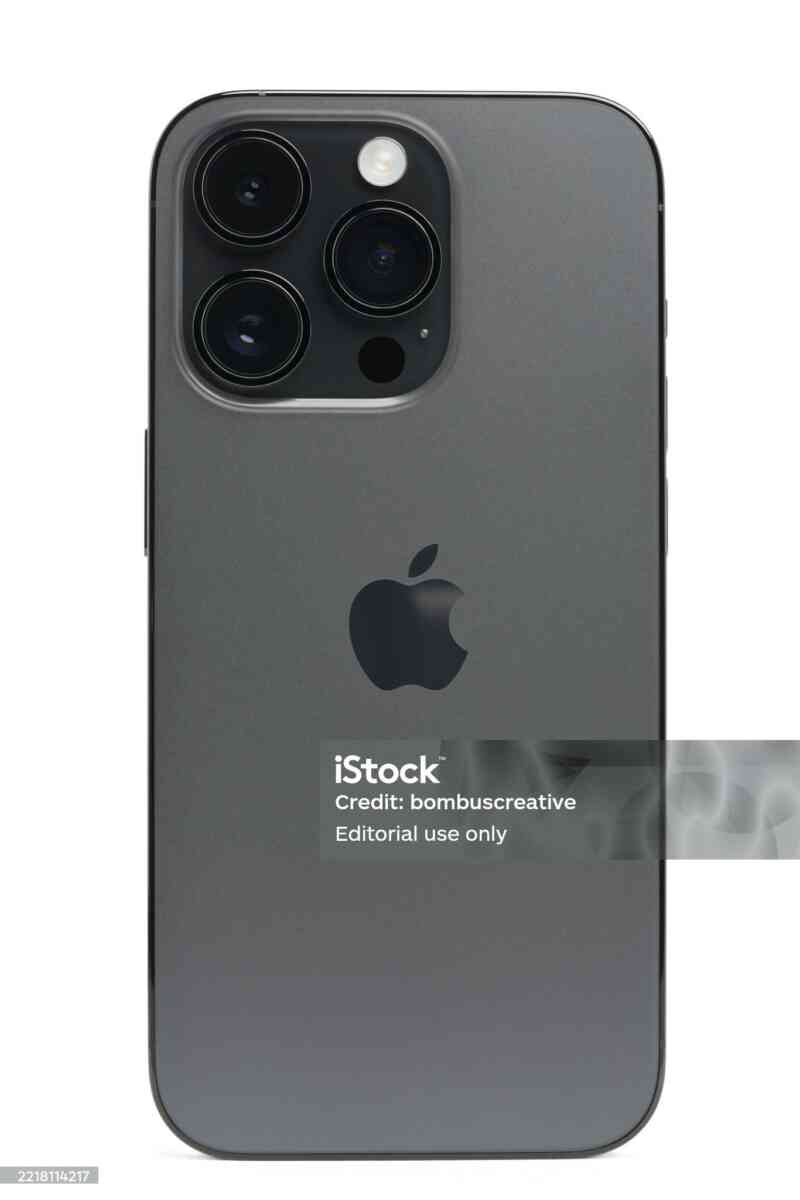
If your iPhone feels slow, laggy, or unresponsive, you’re not alone. Even premium devices from Apple Inc.—including models like the iPhone 16 Pro Max—can lose their speed over time due to settings, storage issues, and background processes.
The good news? You don’t need to buy a new phone. With the right optimizations, you can make your iPhone feel fast, smooth, and responsive again—almost like new.
This is a complete, step-by-step guide covering everything from basic tweaks to advanced performance optimization.
⚡ Why Your iPhone Gets Slow
Before fixing performance, it’s important to understand the causes:
- Too many background apps
- Low storage space
- Outdated iOS
- Excessive animations
- Battery degradation
- Heavy widgets & notifications
Fixing these issues can dramatically improve performance.
🚀 1. Restart Your iPhone Regularly


Why It Works:
Restarting clears RAM, stops background processes, and resets system performance.
Recommendation:
- Restart your iPhone at least once a week
Result:
✔ Immediate performance boost
🧹 2. Free Up Storage Space


Why It Matters:
When storage is almost full, your iPhone slows down significantly.
How to Fix:
- Go to Settings → General → iPhone Storage
- Delete:
- Unused apps
- Large videos
- Duplicate photos
Pro Tip:
Keep at least 20–30% free storage.
🔄 3. Update to the Latest iOS Version


Why:
Updates include:
- Bug fixes
- Performance improvements
- Security patches
How:
- Settings → General → Software Update
Result:
✔ Better speed and stability
🎯 4. Reduce Motion & Animations


Problem:
Animations look nice but consume processing power.
Fix:
- Settings → Accessibility → Motion → Enable Reduce Motion
Benefit:
✔ Faster transitions
✔ Snappier feel
🔋 5. Check Battery Health


Important:
Older batteries can slow down your iPhone due to power limitations.
Check:
- Settings → Battery → Battery Health
Recommendation:
- Replace battery if below 80%
Result:
✔ Huge performance improvement
📱 6. Disable Background App Refresh


Why:
Apps constantly updating in the background slow your device.
Fix:
- Settings → General → Background App Refresh → Off
Result:
✔ Less lag and better speed
🔔 7. Reduce Notifications


Problem:
Too many notifications = constant interruptions.
Fix:
- Disable unnecessary app notifications
- Use Scheduled Summary
Benefit:
✔ Smoother performance
🌐 8. Reset Network Settings


When to Use:
If your internet feels slow or unstable.
How:
- Settings → General → Transfer or Reset → Reset → Network Settings
Result:
✔ Faster connectivity
📡 9. Turn Off Unused Features


Disable When Not Needed:
- Bluetooth
- AirDrop
- Location services
Why:
These features consume resources continuously.
🧠 10. Clear Safari Cache


Why:
Cached data builds up and slows browsing.
Fix:
- Settings → Safari → Clear History & Website Data
🔐 11. Limit Widgets & Live Activities
Problem:
Too many widgets consume RAM.
Fix:
- Remove unnecessary home screen widgets
Result:
✔ Faster home screen performance
📲 12. Delete & Reinstall Problem Apps
Why:
Some apps become buggy or slow over time.
Fix:
- Delete app → Reinstall from App Store
🔄 13. Reset All Settings (Advanced Fix)
When Needed:
If your iPhone is still slow after all optimizations.
How:
- Settings → General → Transfer or Reset → Reset All Settings
⚠️ Note: This won’t delete your data, but resets preferences.
🧊 14. Avoid Overheating
Why:
Heat reduces performance automatically.
Tips:
- Avoid direct sunlight
- Remove case during heavy use
🎮 15. Optimize for Gaming Performance
- Close background apps
- Enable Low Power Mode OFF (for max performance)
- Use stable Wi-Fi
📊 Real Performance Improvements
After applying these optimizations, users typically experience:
- ⚡ Faster app launches
- 📱 Smoother scrolling
- 🔋 Better battery efficiency
- 🚀 Reduced lag
🎯 Pro Optimization Checklist
✔ Restart weekly
✔ Keep storage below 80%
✔ Update iOS regularly
✔ Reduce animations
✔ Monitor battery health
✔ Limit background apps
🏁 Final Thoughts
Your iPhone slowing down doesn’t mean it’s outdated—it just needs optimization.
Even high-end devices like the iPhone 16 Pro Max can lose performance if not properly maintained.
With the tips in this guide, you can:
- Extend your device lifespan
- Improve speed instantly
- Avoid unnecessary upgrades