Jessy obrien
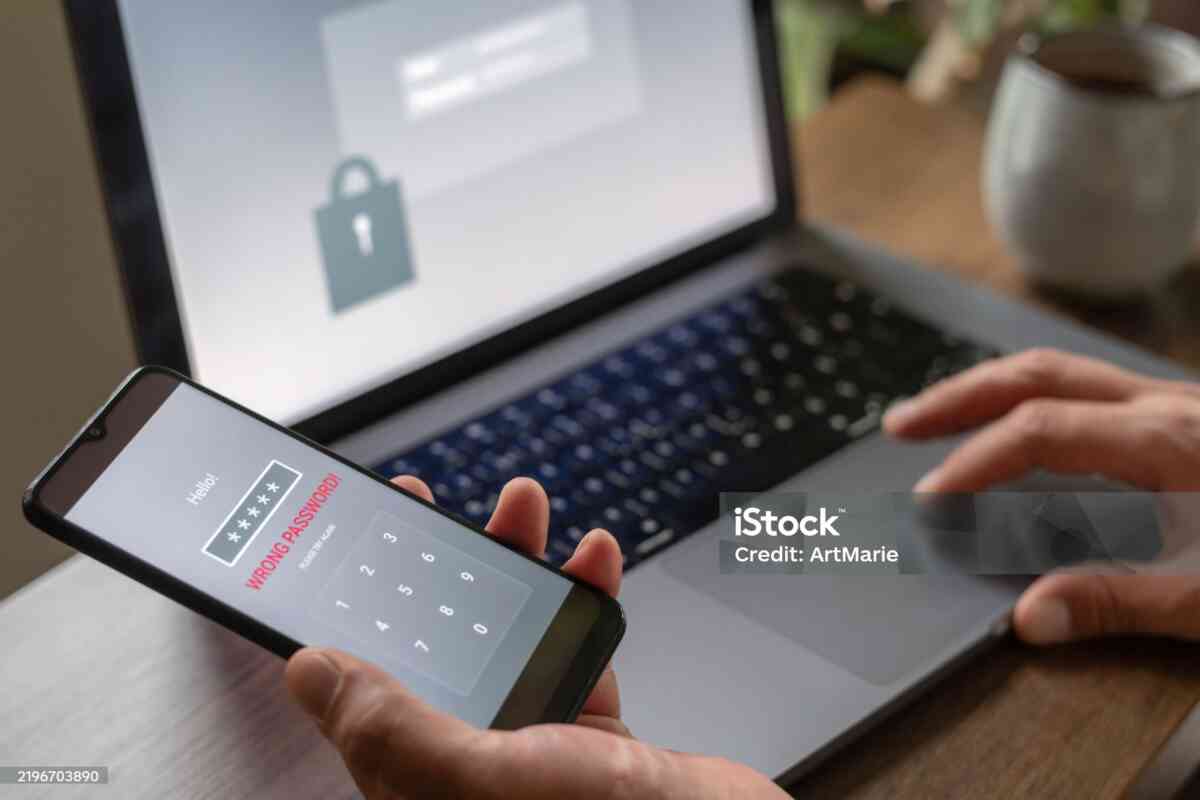
In today’s digital world, your smartphone holds everything—banking apps, private photos, emails, business data, and personal conversations. If your phone is compromised, your entire digital life is at risk.
Fortunately, devices from Apple Inc.—including the powerful iPhone 16 Pro Max—are built with strong security foundations. But even the best technology requires proper configuration.
This complete iPhone security guide will show you how to protect your data like a pro, covering everything from basic settings to advanced privacy strategies.
🔐 Why iPhone Security Matters More Than Ever
Cyber threats are increasing rapidly:
- Identity theft
- Phishing scams
- Data leaks
- Spyware attacks
Even if you’re not a “target,” automated attacks scan millions of devices daily.
Key idea: Security isn’t optional—it’s essential.
🔑 1. Set a Strong Passcode (Your First Line of Defense)


Avoid:
❌ 123456
❌ Birthdays
❌ Simple patterns
Use Instead:
✔ 6+ digit code
✔ Alphanumeric passcode
How to Set:
- Settings → Face ID & Passcode → Change Passcode
👁️ 2. Use Face ID or Touch ID


Benefits:
- Faster unlocking
- Strong biometric security
- Works with banking apps
Tip:
Keep passcode enabled as backup.
🔒 3. Enable Two-Factor Authentication (2FA)


Why It’s Critical:
Even if someone knows your password, they can’t access your account without your device.
Enable It:
- Settings → Apple ID → Password & Security → Two-Factor Authentication
📍 4. Activate Find My iPhone


Features:
- Track your device
- Play sound
- Lock remotely
- Erase data
Why:
Essential if your phone is lost or stolen.
📡 5. Control Location Sharing


Risks:
Apps tracking your location unnecessarily.
Fix:
- Set apps to “While Using” or “Never”
- Disable precise location for non-essential apps
🔔 6. Manage App Permissions Carefully


Check Permissions:
- Camera
- Microphone
- Contacts
- Photos
Tip:
Only allow access when necessary.
🕵️ 7. Enable App Tracking Transparency


What It Does:
Stops apps from tracking your activity across other apps and websites.
Enable:
- Settings → Privacy → Tracking → Disable tracking
🌐 8. Use Secure Wi-Fi Practices


Avoid:
❌ Public Wi-Fi without protection
Use:
✔ VPN services
✔ Trusted networks
Tip:
Never access banking apps on public Wi-Fi.
🛡️ 9. Keep iOS Updated


Why:
Updates fix vulnerabilities.
Enable Auto Updates:
- Settings → General → Software Update → Automatic Updates
📂 10. Secure Your Photos & Files


Tips:
- Use Hidden Album
- Lock Notes with password
- Avoid storing sensitive info openly
🔑 11. Use Strong Passwords & Password Manager
Recommendation:
- Use unique passwords for each account
- Enable iCloud Keychain
Benefit:
✔ Secure and auto-fill passwords
🚫 12. Avoid Phishing Attacks
Warning Signs:
- Fake emails
- Suspicious links
- Urgent requests
Rule:
Never click unknown links.
🔍 13. Monitor Privacy Reports
Feature:
App Privacy Report shows:
- Data access
- Network activity
Enable:
- Settings → Privacy & Security
📱 14. Enable Lock Screen Restrictions
Disable Access To:
- Control Center
- Siri
- Notifications
Why:
Prevents unauthorized access when locked.
🧠 15. Advanced Security Tips
- Use email aliases
- Avoid jailbreaking
- Enable SIM PIN
- Log out from shared devices
📊 Real-World Security Benefits
After applying these steps:
- 🔐 Stronger protection against hackers
- 📉 Reduced tracking and data leaks
- 📱 Safer daily usage
- 🛡️ Better privacy control
🎯 Common Mistakes to Avoid
❌ Using weak passwords
❌ Ignoring updates
❌ Allowing all app permissions
❌ Using public Wi-Fi carelessly
❌ Not enabling Find My
🏁 Final Thoughts
Security isn’t just for experts—it’s for everyone.
Even though devices like the iPhone 16 Pro Max are built with strong protections, your habits and settings determine how safe your data really is.
By following this guide, you can:
- Protect personal data
- Prevent cyber threats
- Use your iPhone with confidence